> ## Documentation Index
> Fetch the complete documentation index at: https://docs.thanx.com/llms.txt
> Use this file to discover all available pages before exploring further.
# BigQuery
> Configuring your BigQuery destination.
## Prerequisites
* [ ] By default, BigQuery authentication uses role-based access. You will need the data-syncing service's service account name available to grant access. It should look like `some-name@some-project.iam.gserviceaccount.com`.
## Step 1: Create service account in BigQuery project
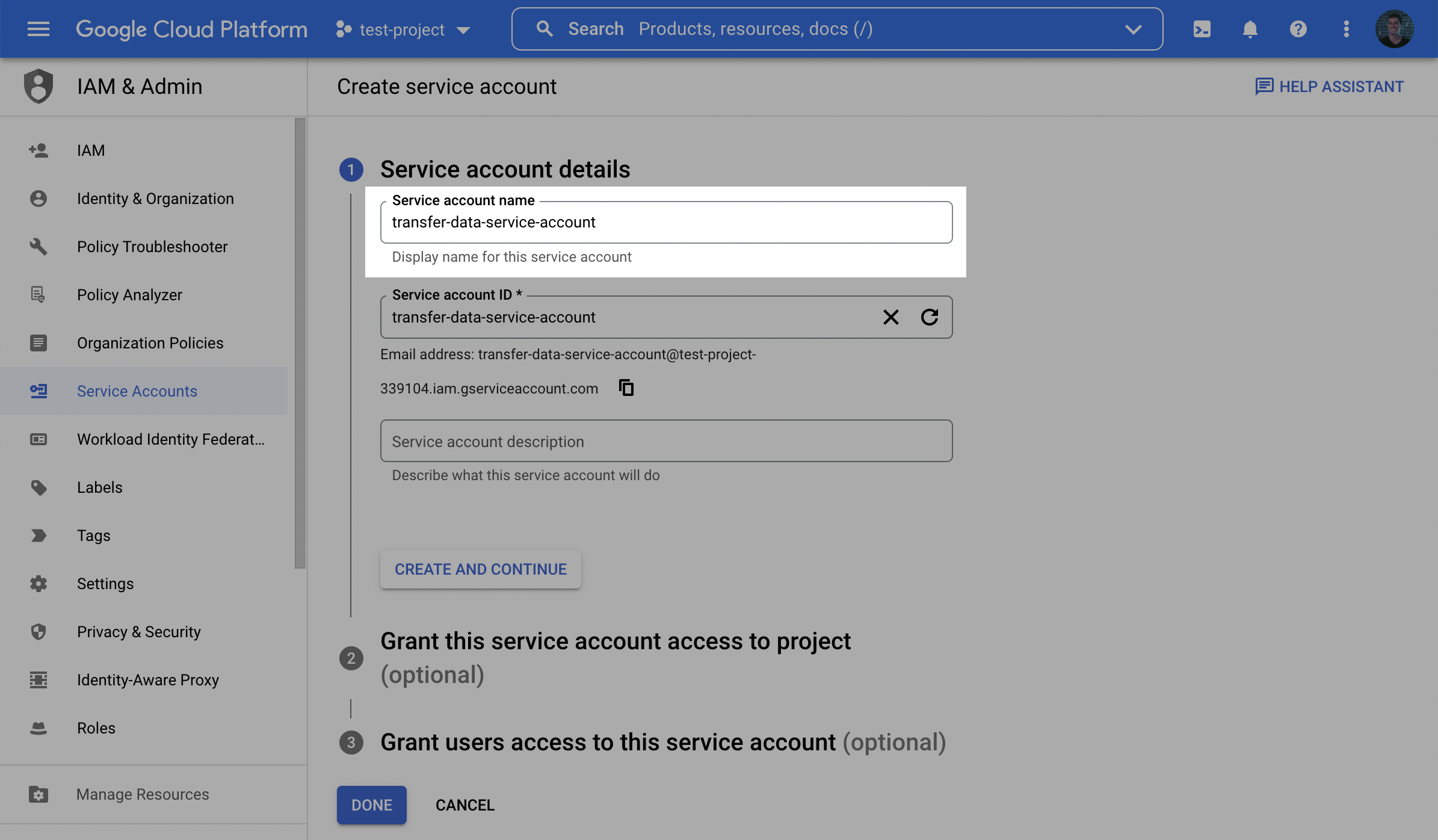
1. In the GCP console, navigate to the **IAM & Admin** menu, click into the **Service Accounts** tab, and click **Create service account** at the top of the menu.

2. In the first step, name the user and click **Create and Continue**.
3. In the second step, grant the user the role **BigQuery User**.
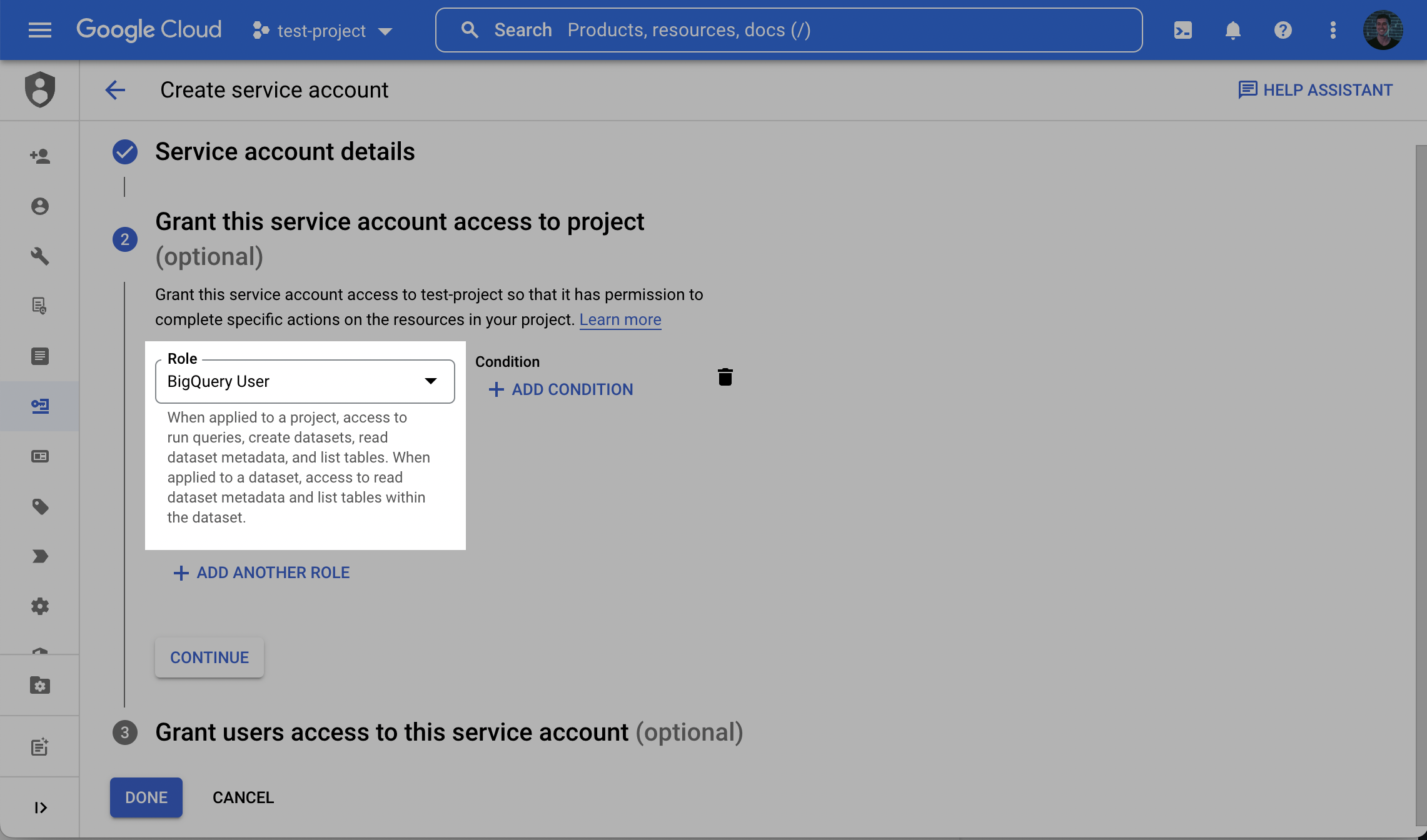
**Understanding the BigQuery User role**
The BigQuery User role is a predefined IAM role that allows for the creation of new datasets, with the creator granted BigQuery Data Owner on the new dataset.
If you would like to avoid using the BigQuery User role, the minimum required permissions are:
* On the **Project level**:
* `bigquery.datasets.create`
* `bigquery.datasets.get`
* `bigquery.jobs.create`
*Note: These minimum permissions assume that the dataset has not been created ahead of time. If you create the dataset ahead of time, see the following note.*
**Loading data into a Dataset that already exists**
By default, a new dataset (with a name you provide) will be created in the BigQuery project. If instead you create the dataset ahead of time, you will need to grant the **BigQuery Data Owner** role to this Service Account at the dataset level.
In BigQuery, click on the existing dataset. In the dataset tab, click **Sharing**, then **Permissions**. Click **Add Principals**. Enter the Service Account name, and add the Role: **BigQuery Data Owner**
Specifically, the minimum permissions required can be granted to the principal and applied to the **Dataset**:
* `bigquery.tables.create`
* `bigquery.tables.delete`
* `bigquery.tables.get`
* `bigquery.tables.getData`
* `bigquery.tables.list`
* `bigquery.tables.update`
* `bigquery.tables.updateData`
* `bigquery.routines.get`
* `bigquery.routines.list`
On the **Project** level, you will still need `bigquery.jobs.create`, but you will not need `bigquery.datasets.create` or `bigquery.datasets.get`.
4. In the third step (**Grant users access to this service account** step), within the **Service account users role** field, enter the provided **Service account** (see prerequisite) and click **Done**.
5. Once successfully created, search for the created service account in the service accounts list, click the **Service account** name to view the details, and make a note of the **email** (note: this is a different email than the service's service account).
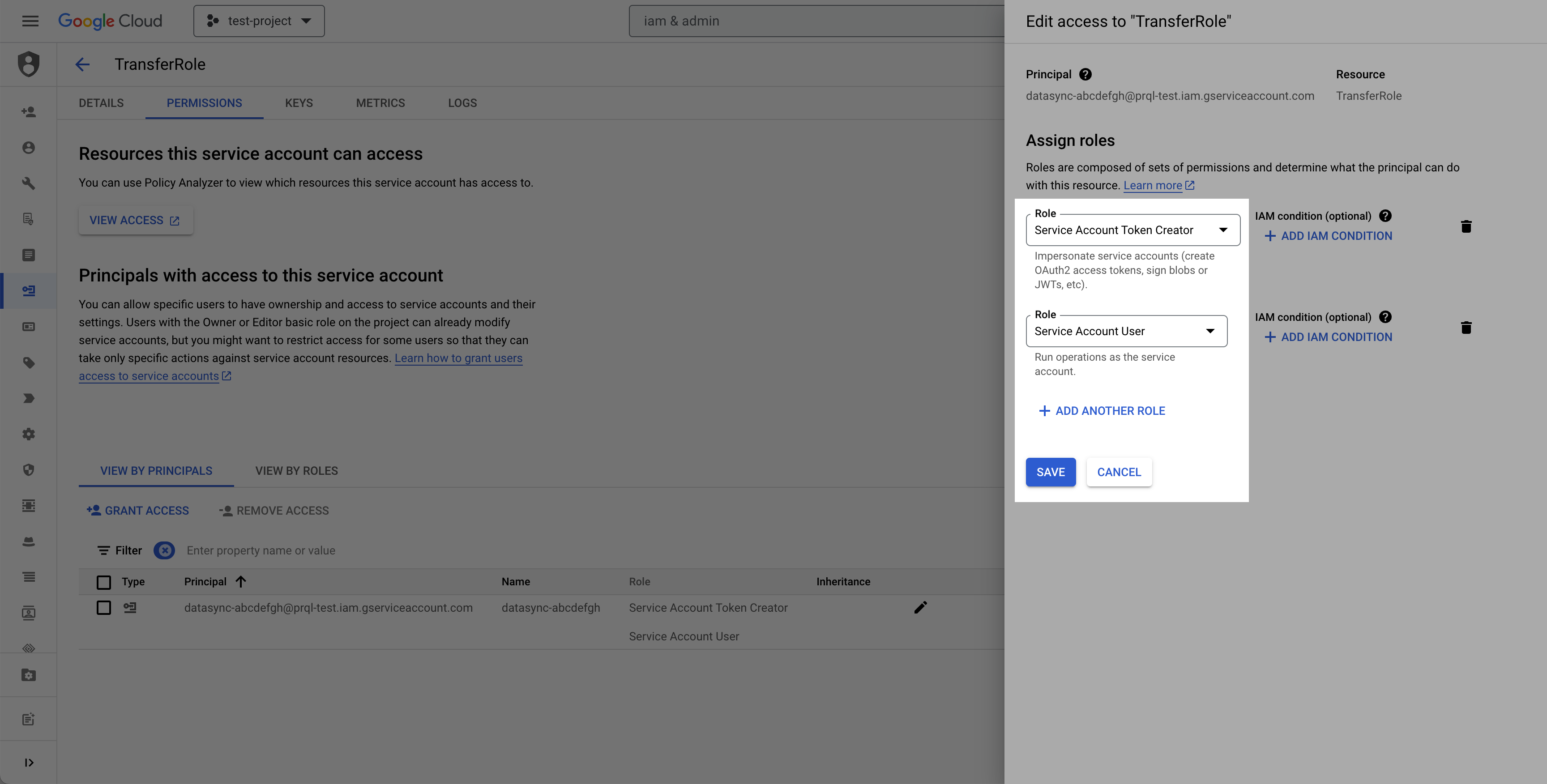
6. Select the permissions tab, find the provided principal name (**Service account** from the prerequisite), click the **Edit principal** button (pencil icon), click **Add another role**, select the **Service Account Token Creator** role, and click **Save**.
> 
**Alternative authentication method: Granting direct access to service account**
Role based authentication is the preferred authentication mode for BigQuery based on GCP recommendations, however, providing a service account key to directly log-in to the created service account is an alternative authentication method that can be used if preferred.
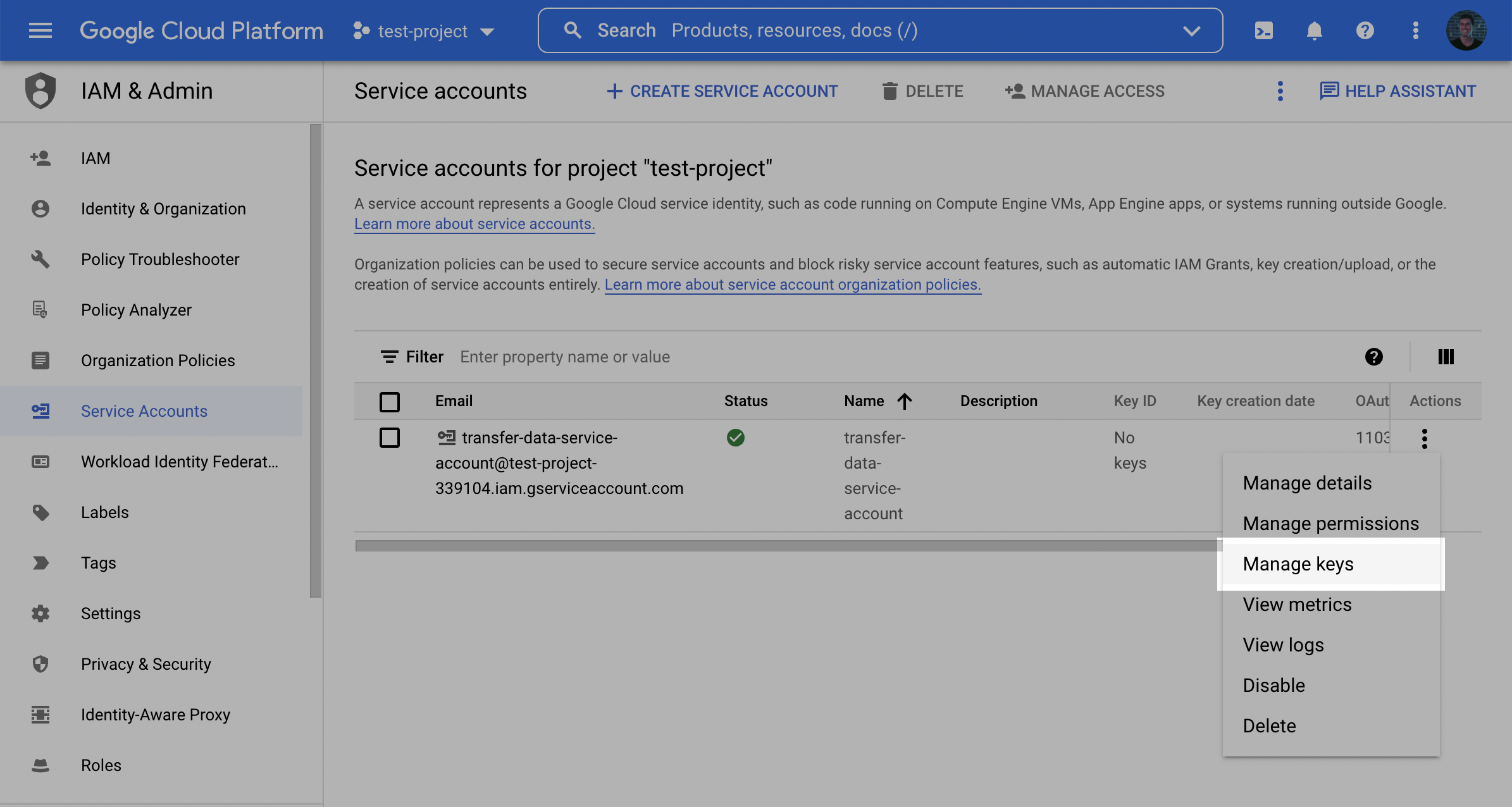
1. Back in the **Service accounts** menu, click the Actions dropdown next to the newly created service account and click **Manage keys**.
2. Click **Add key** and then **Create new key**.
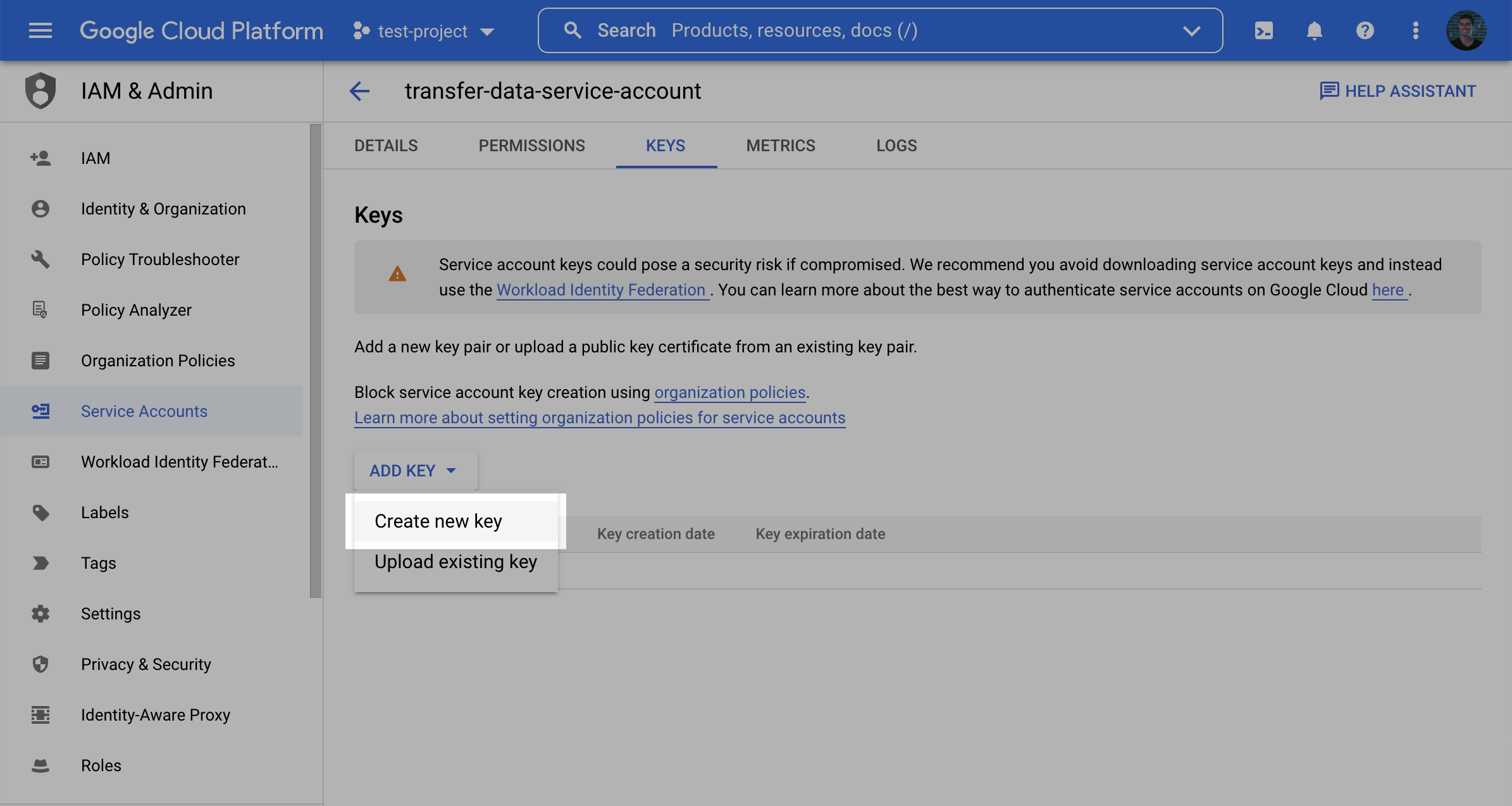
3. Select the **JSON** Key type and click **Create** and make note of the key that is generated.
## Step 2: Create a staging bucket
1. Log into the Google Cloud Console and navigate to **Cloud Storage**. Click **Create** to create a new bucket.
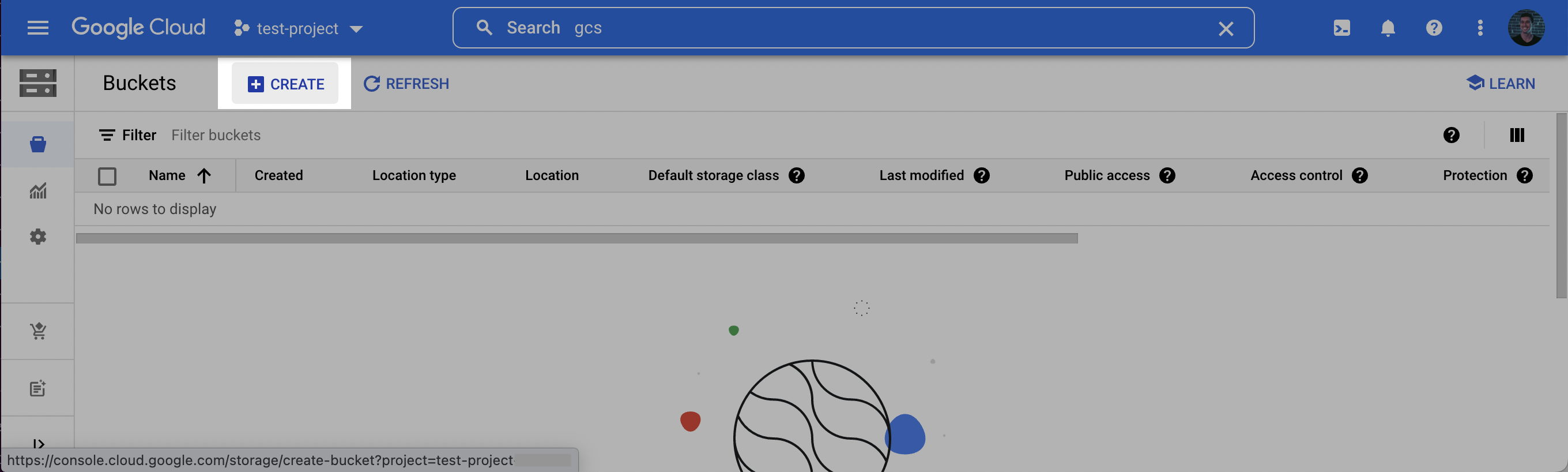
1. Choose a **name** for the bucket. Click **Continue**. Select a **location** for the staging bucket. Make a note of both the **name** and the **location** (region).
**Choosing a `location` (region)**
The location you choose for your staging bucket must match the location of your destination dataset in BigQuery. When creating your bucket, be sure to choose a region in which BigQuery is supported [(see BigQuery regions)](https://cloud.google.com/bigquery/docs/locations)
* If the dataset **does not** exist yet, the dataset will be created for you in the same region where you created your bucket.
* If the dataset **does** exist, the dataset region must match the location you choose for your bucket.
2. Click **continue** and select the following options according to your preferences. Once the options have been filled out, click **Create**.
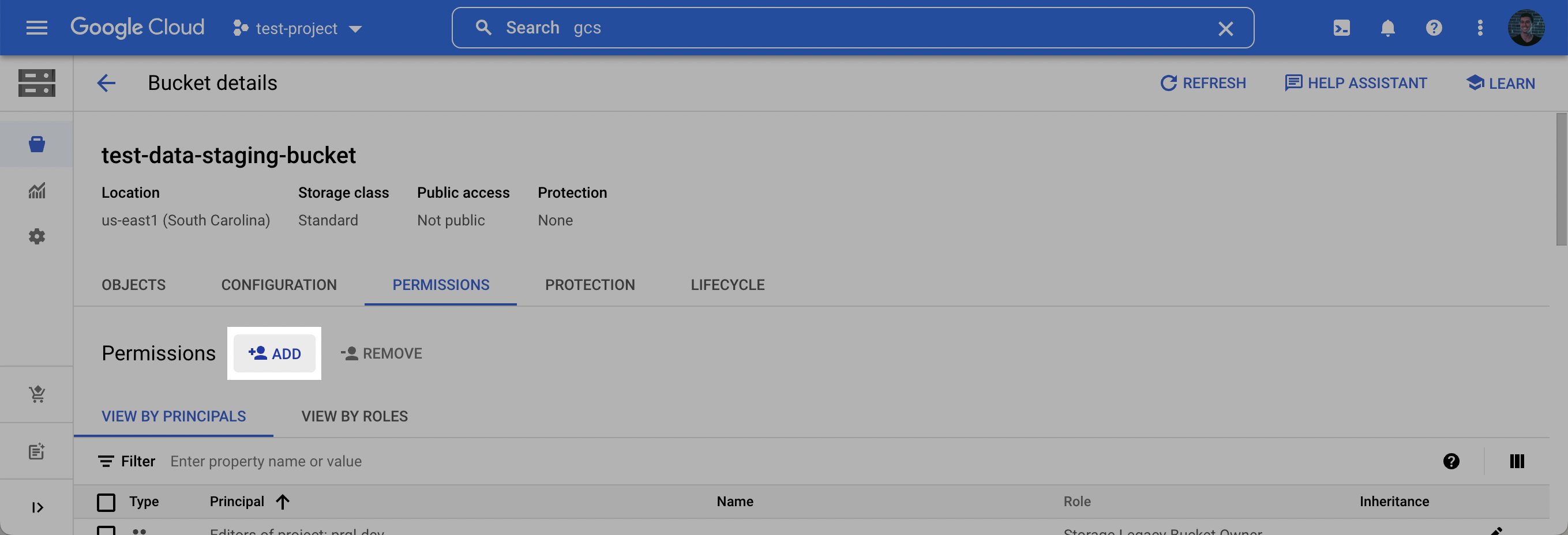
3. On the **Bucket details** page that appears, click the **Permissions** tab, and then click **Add**.
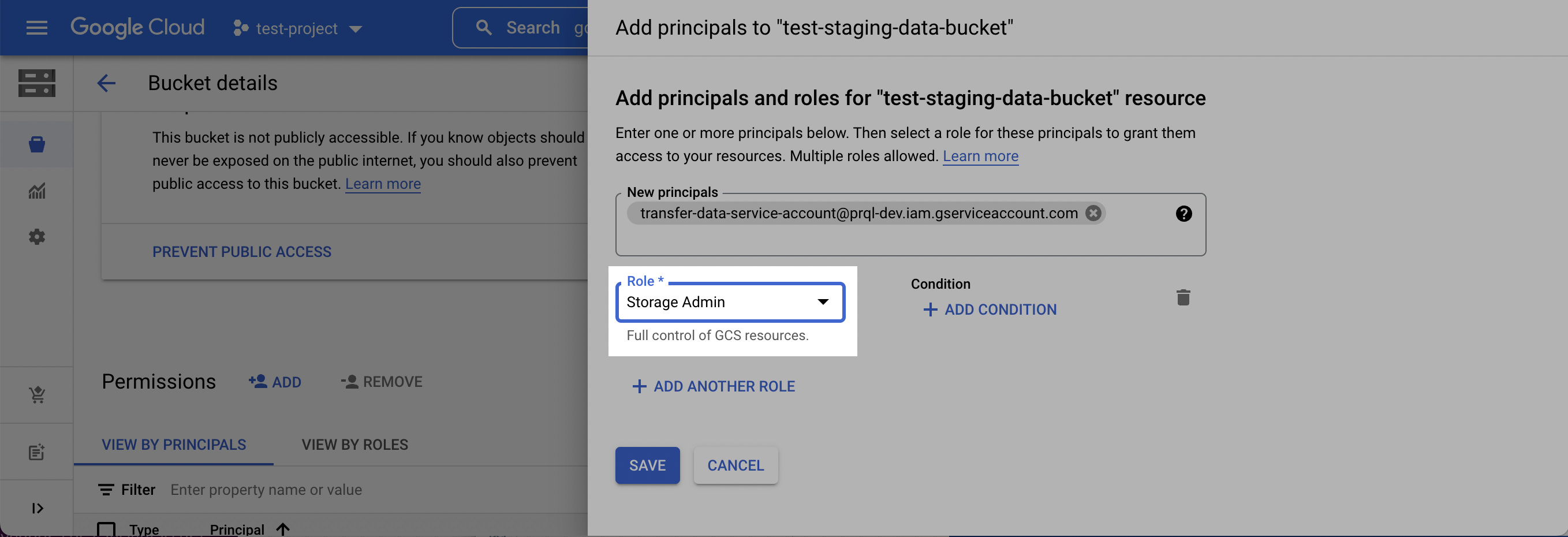
4. In the **New principles** dropdown, add the Service Account created in **Step 1**, select the **Storage Admin** role, and click **Save**.
## Step 3: Find Project ID
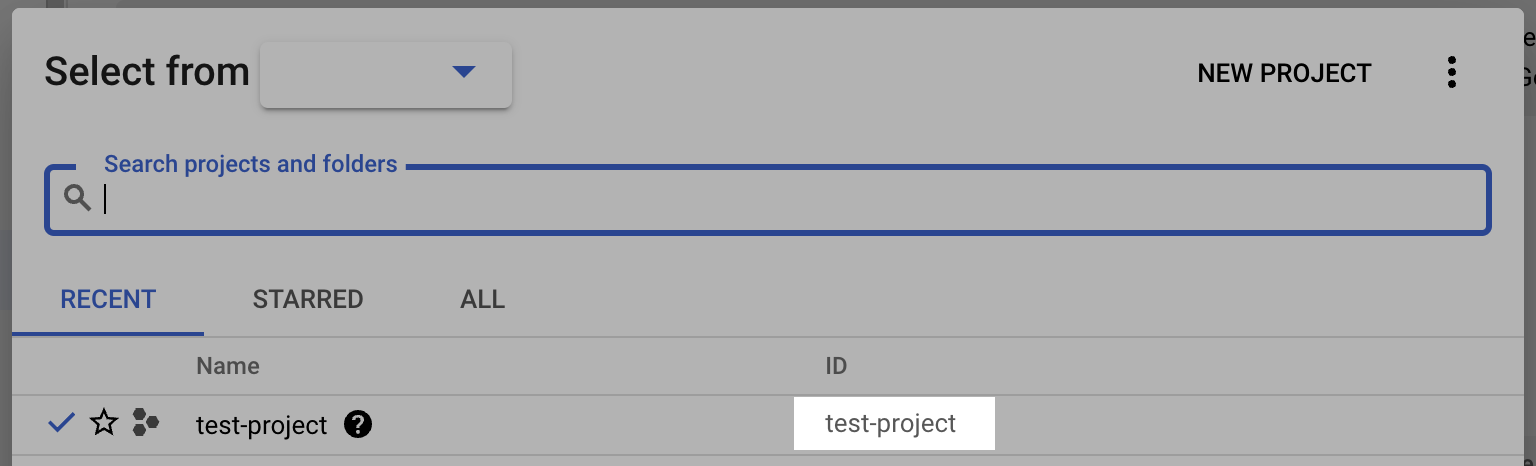
1. Log into the Google Cloud Console and select the projects list dropdown.
2. Make note of the BigQuery **Project ID**.
## Step 4: Add your destination
1. Securely share your **Project ID**, **Bucket Name**, **Bucket Location**, **Destination Schema Name** and **Service Account name** with us to complete the connection.